

Send a Transfer Offer
-
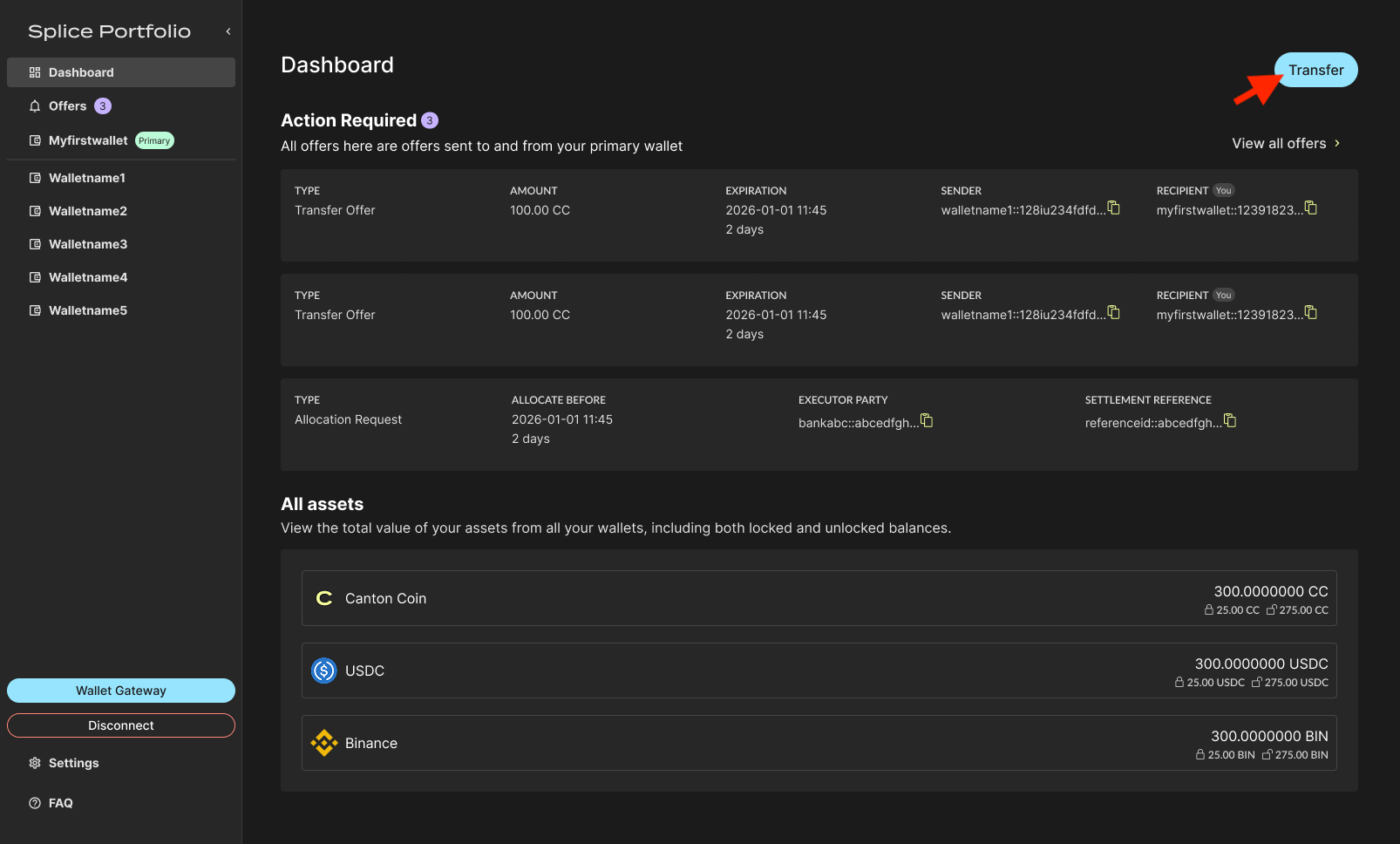
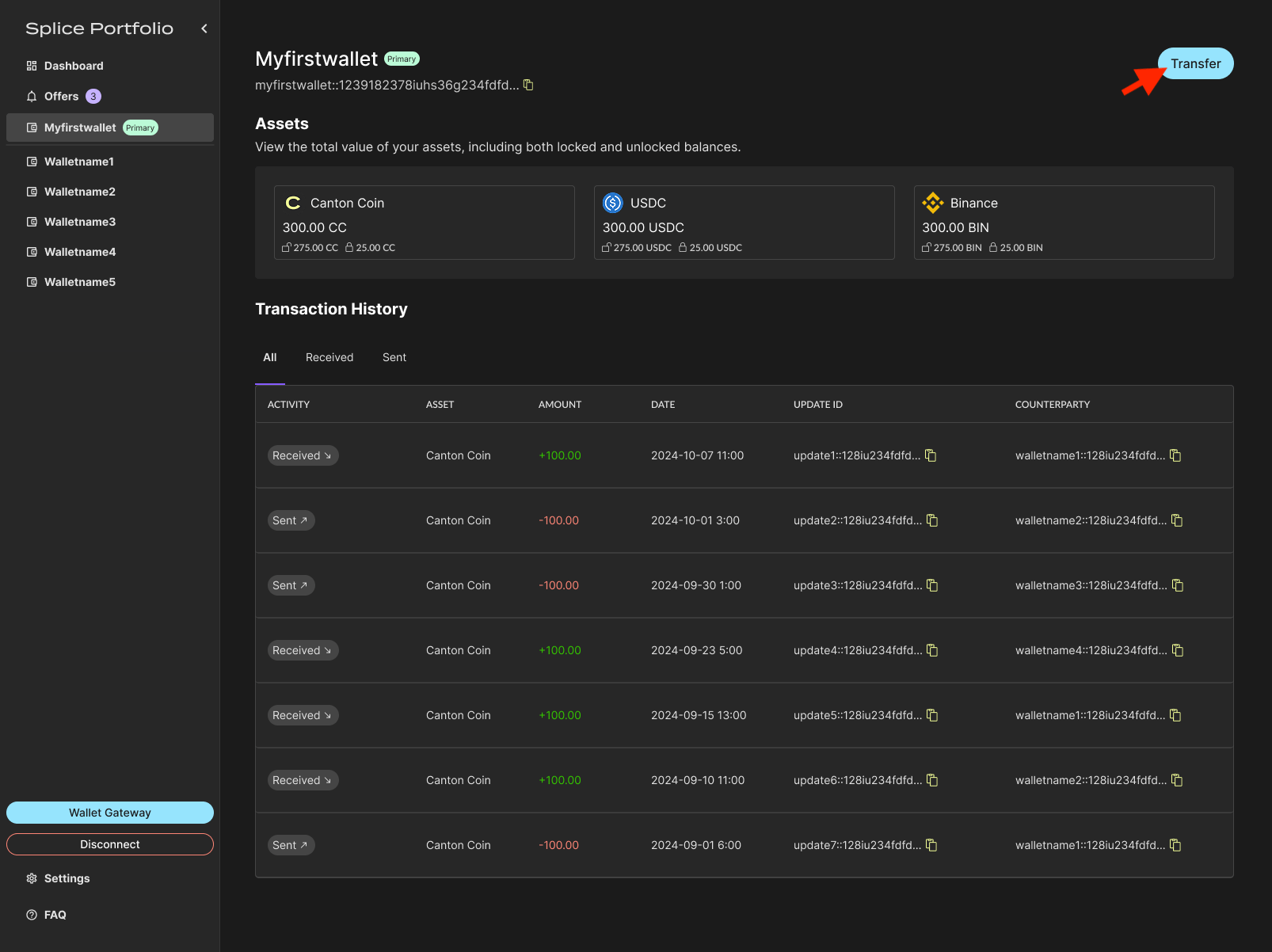
From the Dashboard or your primary party view, click Transfer in the top right corner of the screen.
-
Complete the transfer form and select Make Transfer.
 If the recipient party has pre-approved the asset being transferred, an offer expiration date is not required.
 -
Review the transfer details on the confirmation screen.
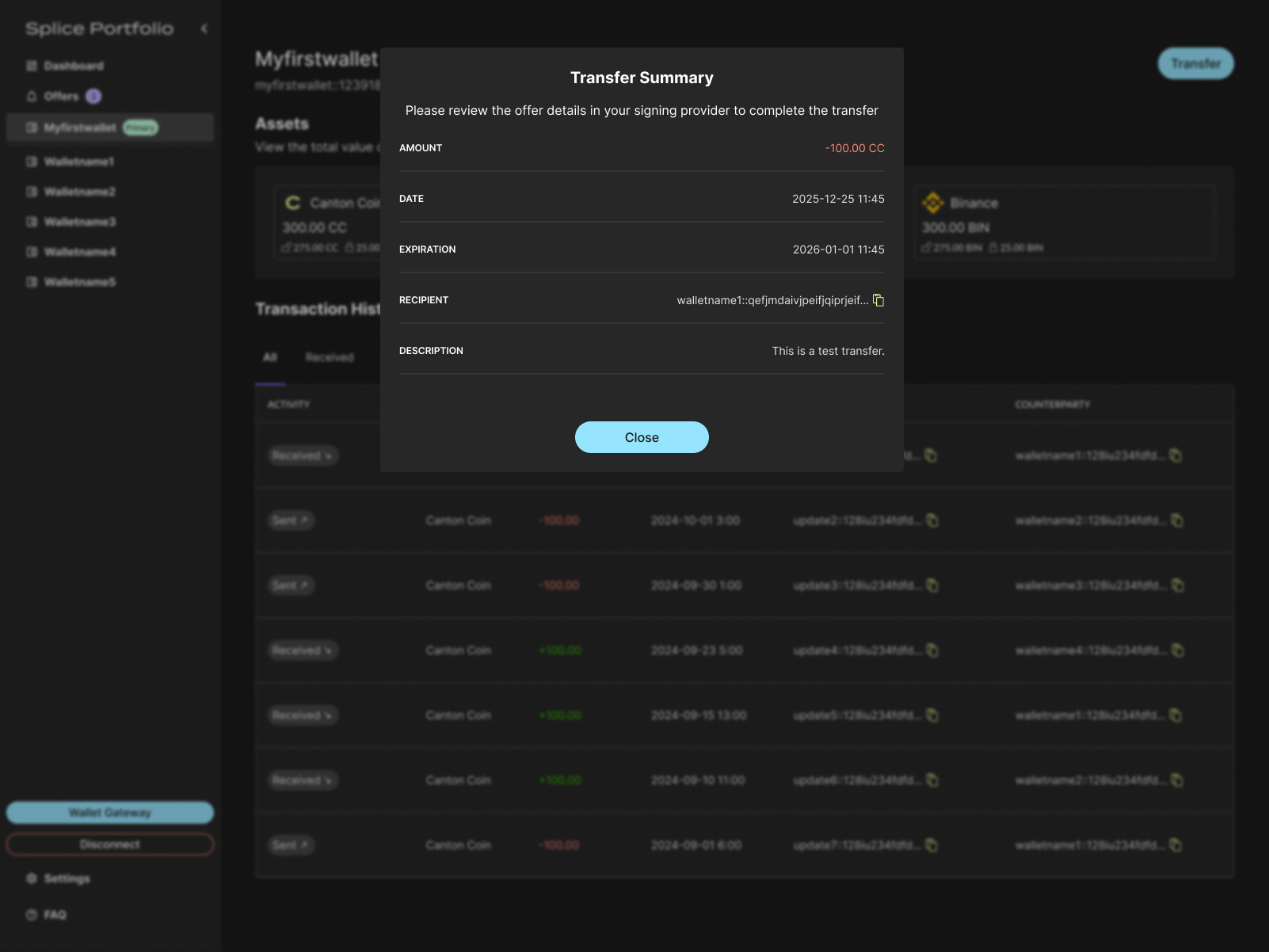
- To complete the transfer, go to your CIP-103 compliant wallet to complete signing.
-
Verify the transfer in Offers > Transfers.
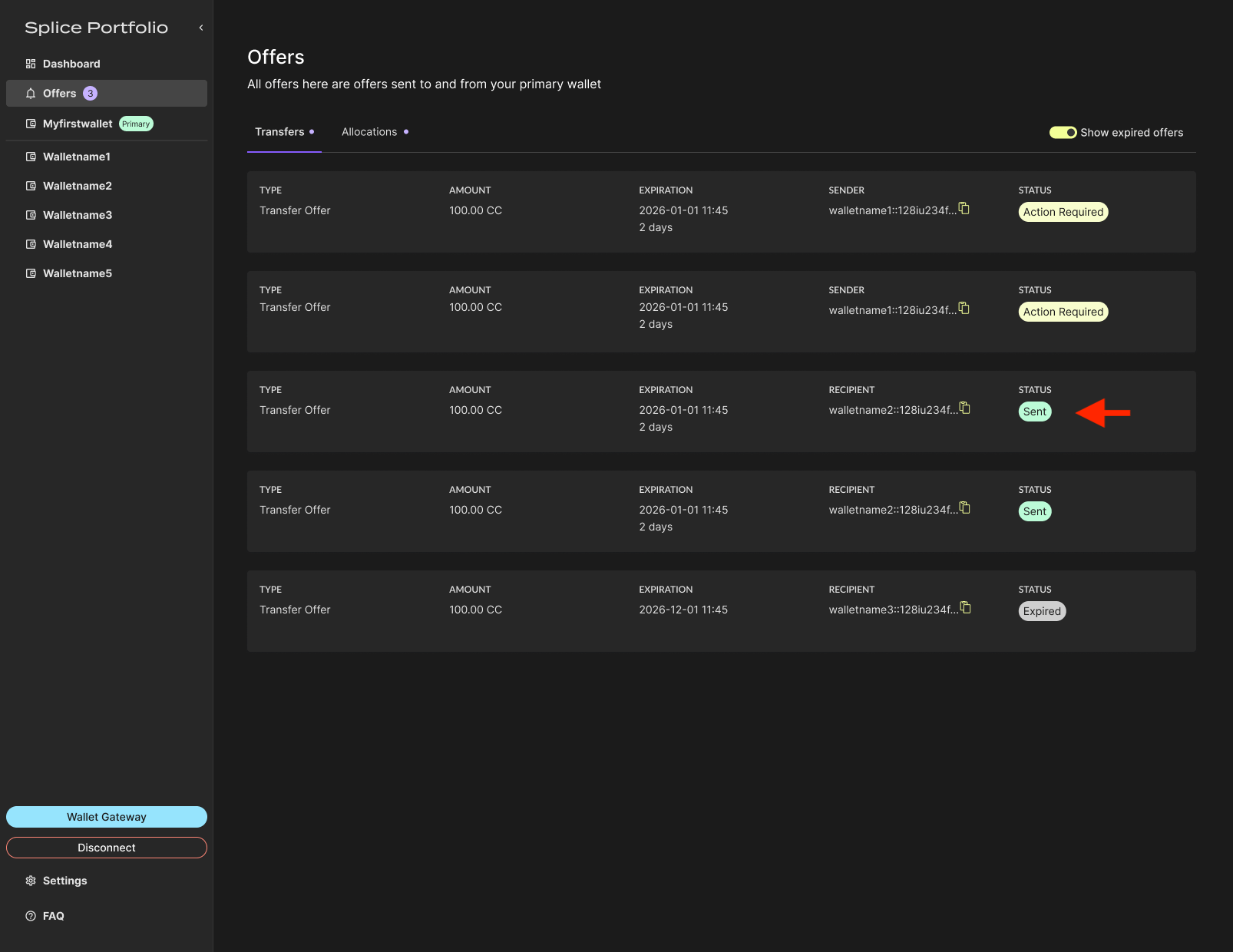
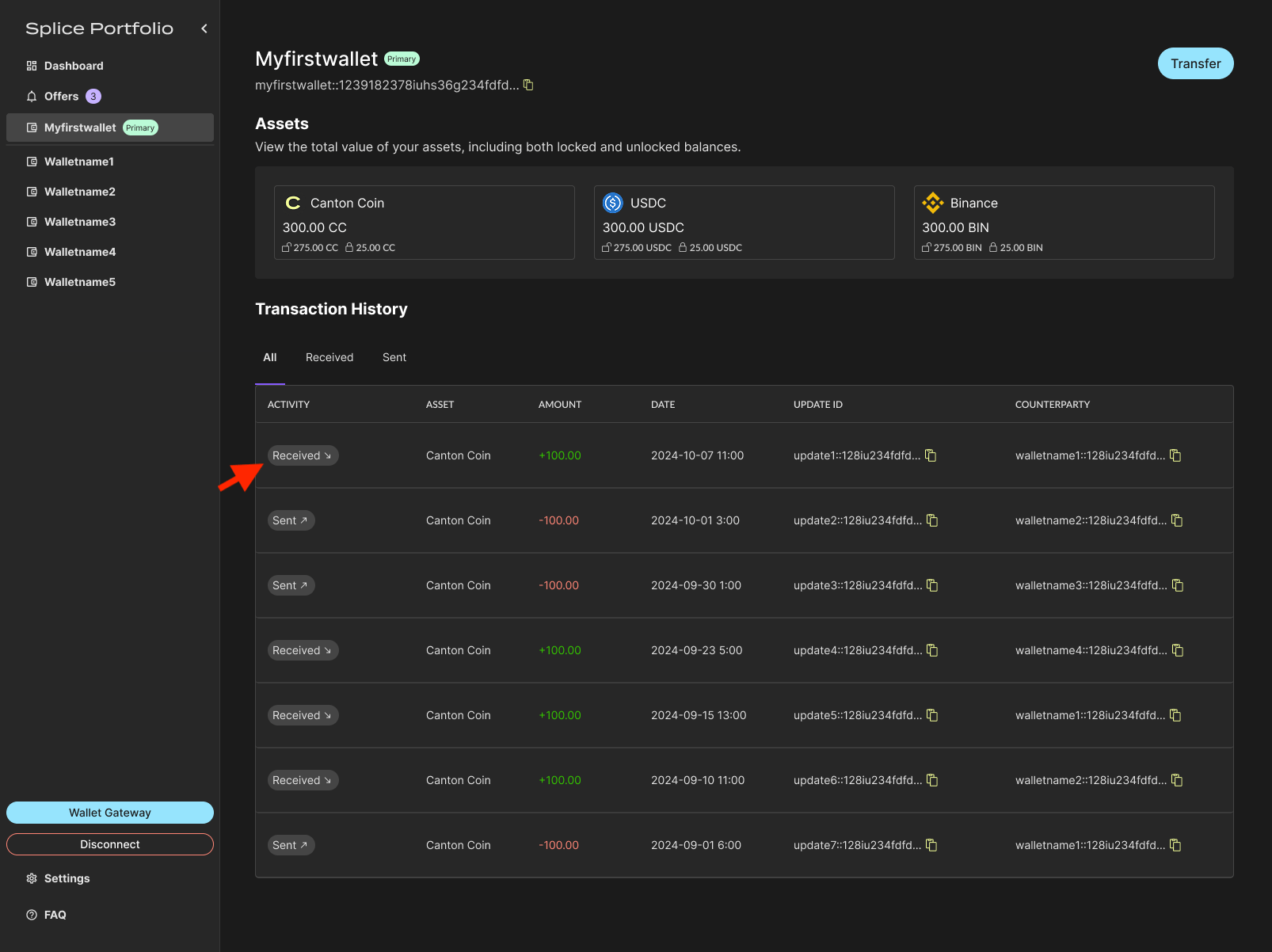
If the recipient party has pre-approved the asset, the completed transfer appears in the transaction history as soon as it completes on-chain.
Withdraw a Transfer Offer
You can withdraw a transfer offer you have sent only if the recipient has not yet accepted it and has not set up pre-approval for the asset being transferred.- Go to Offers > Transfers.
-
Select the offer you want to withdraw.
-
Click Withdraw.
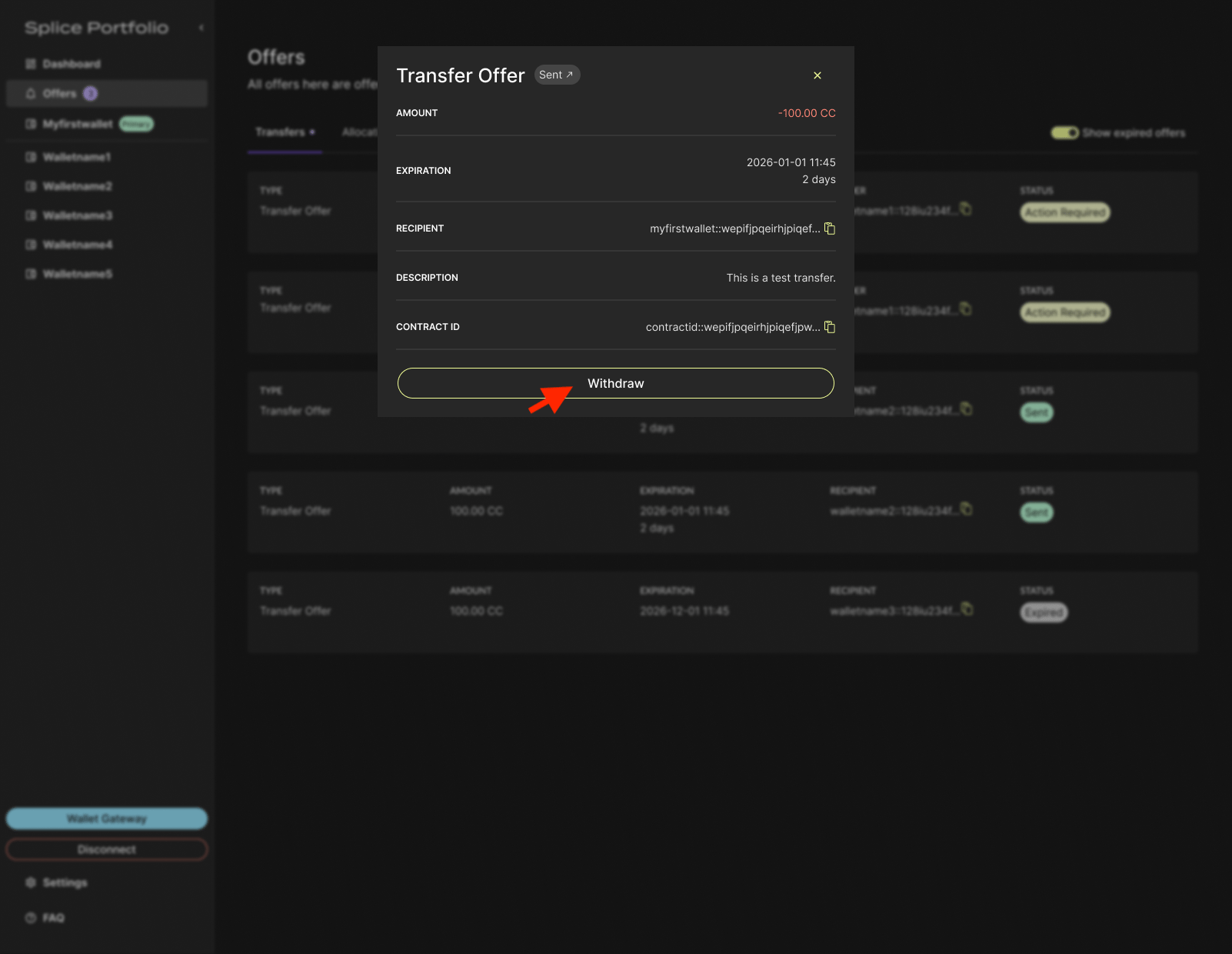
- To complete this action, go to your CIP-103 wallet to complete signing.
Accept or Reject a Transfer Offer
There are two ways to respond to a transfer offer.-
From the Dashboard, select the transfer offer.
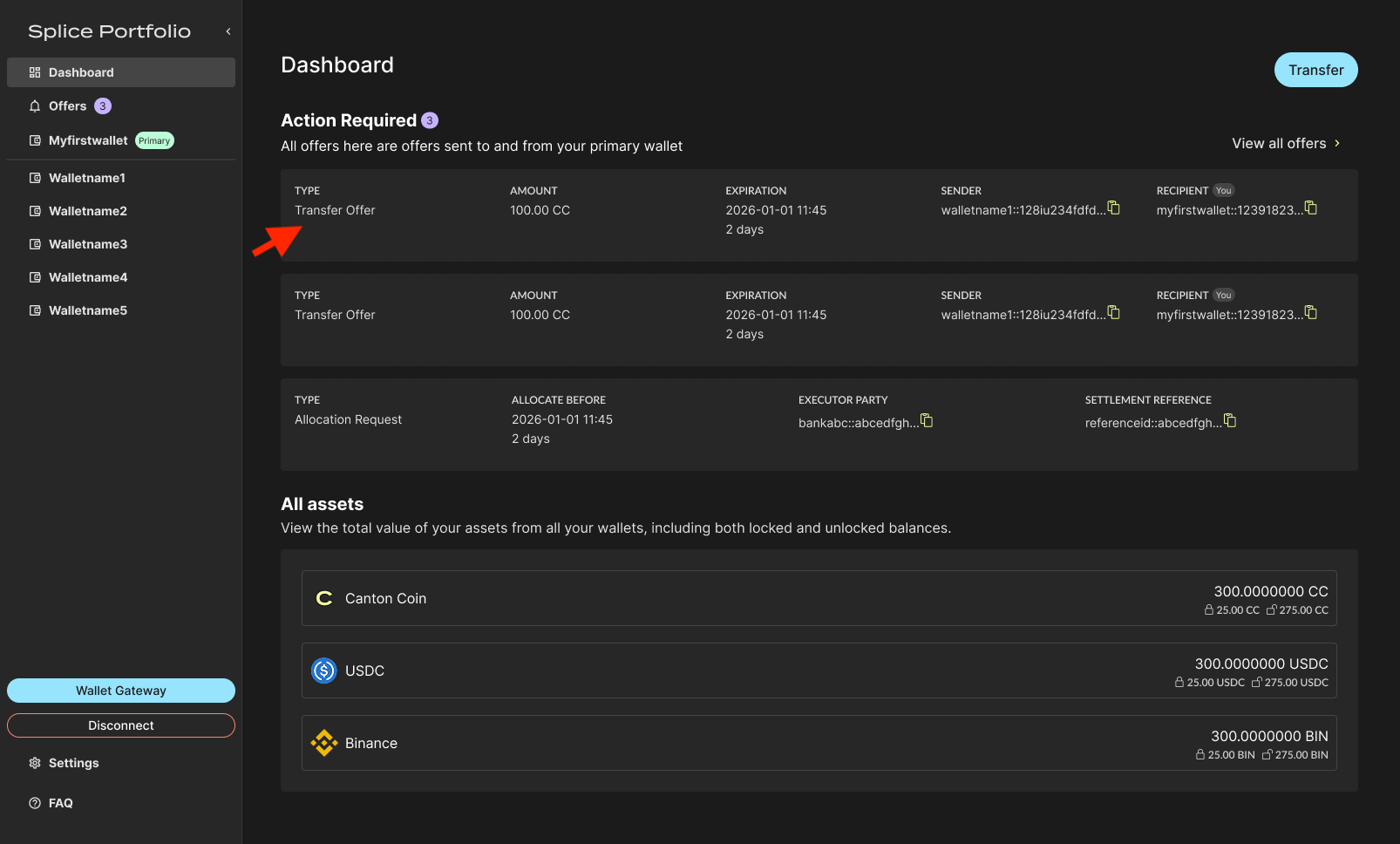
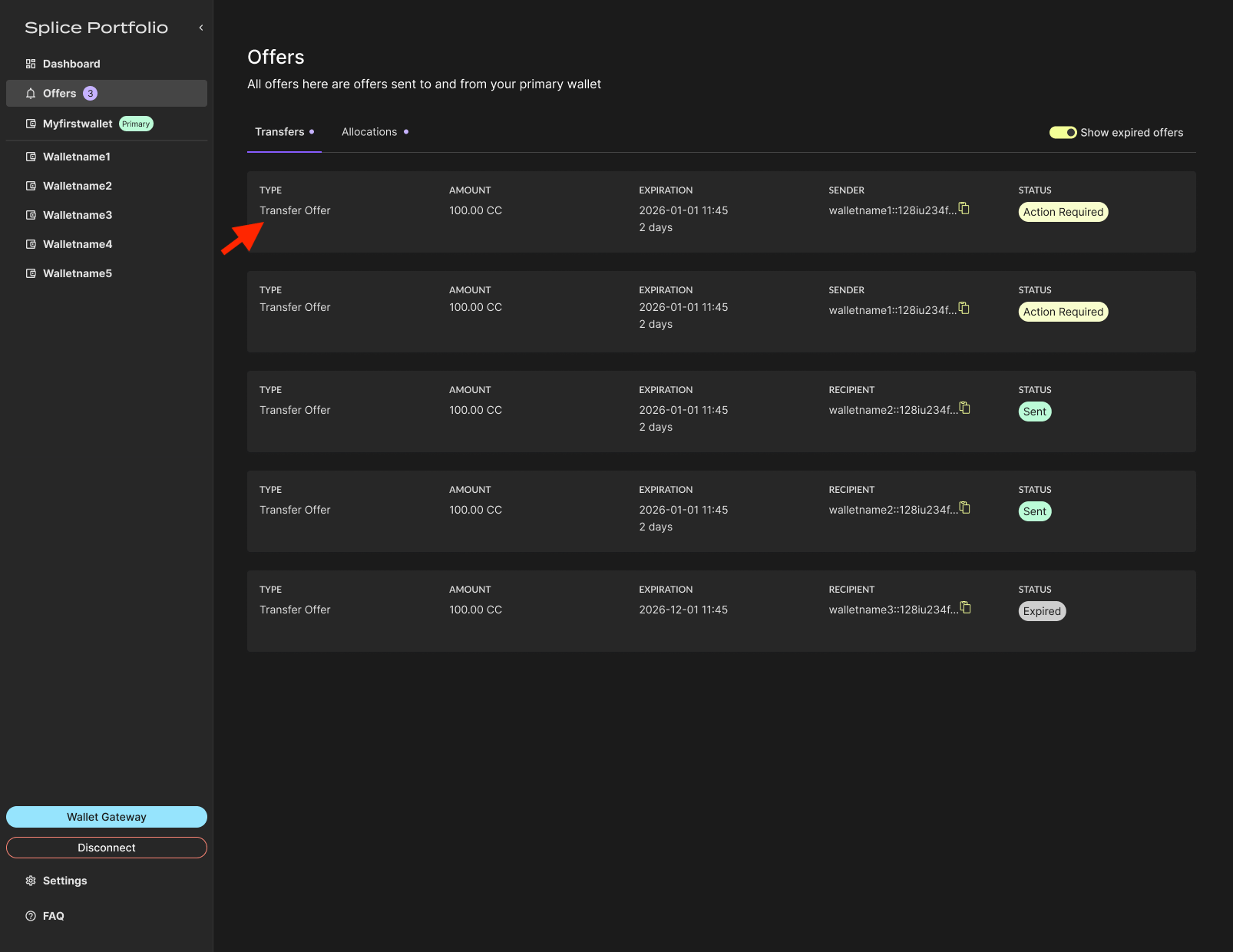
-
Click Accept or Reject.
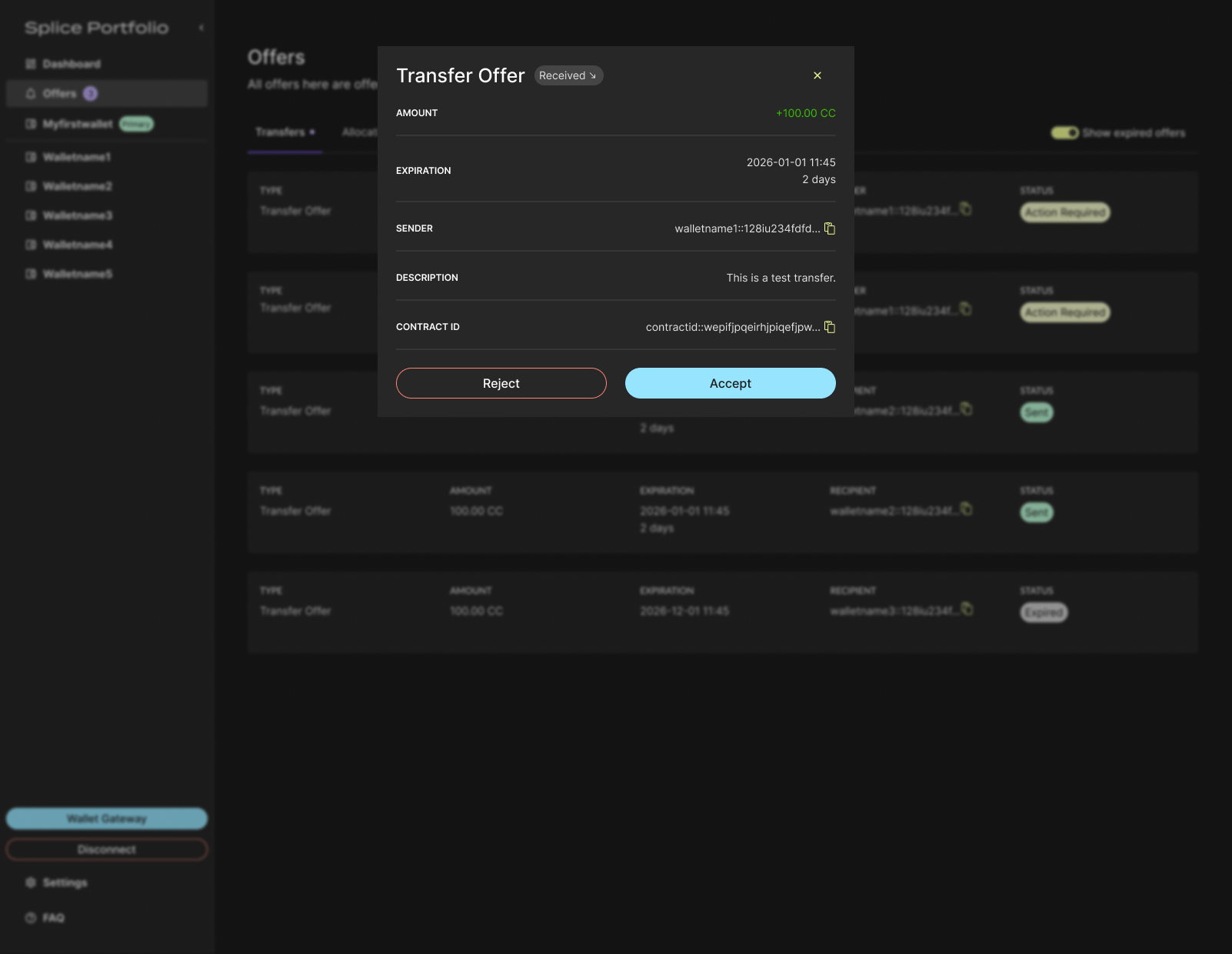
- To complete this action, go to your CIP-103 wallet to complete signing.
-
If accepted, review the completed transaction in your primary party’s transaction history.
Next Steps
- Enable Pre-Approvals — Accept incoming transfers of an asset automatically
- Allocations — Respond to allocation requests